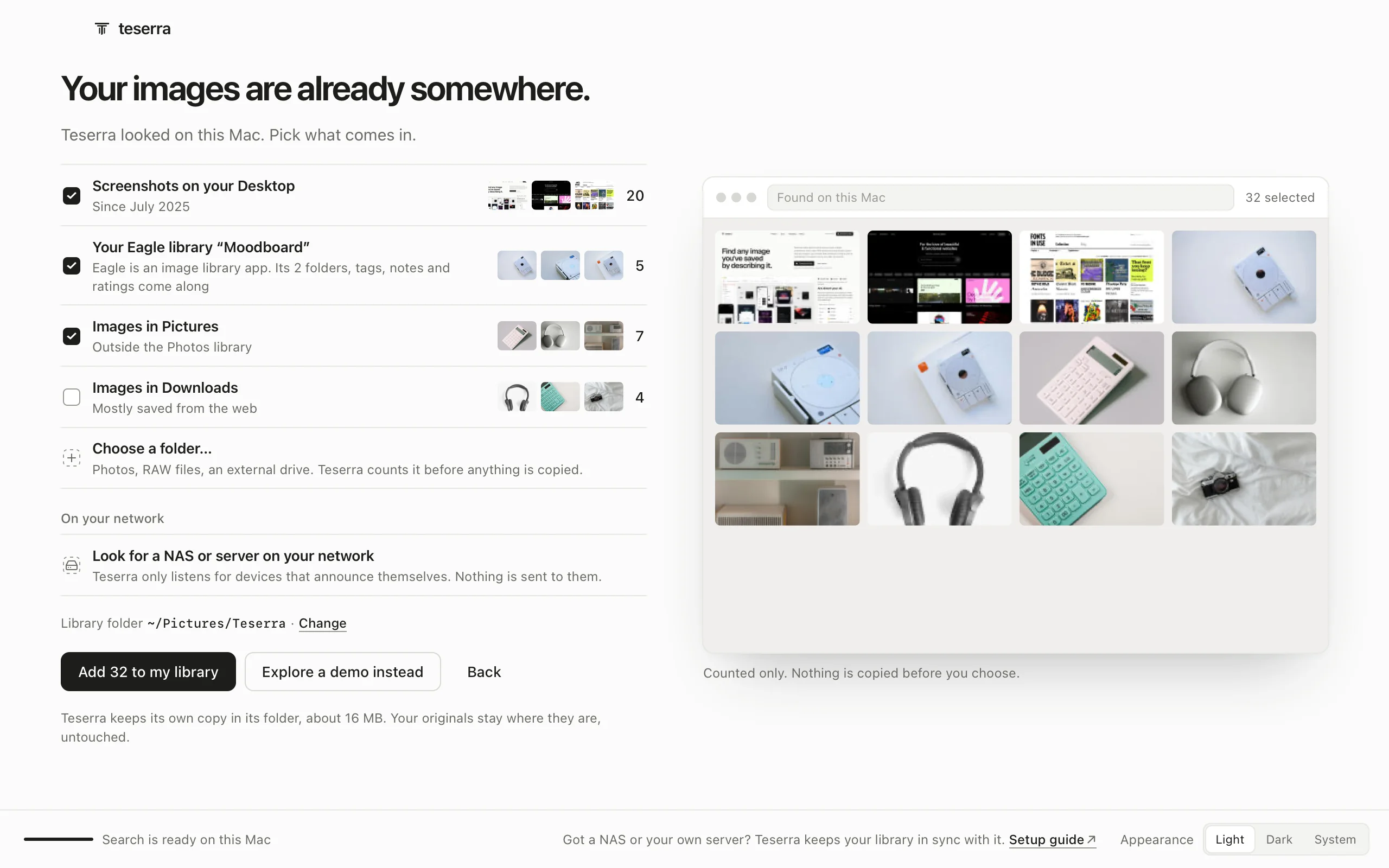
Tags, collections and batch actions
Everything you write about an item lives next to it, in a text file. This page is about writing it faster: one item from the inspector, a hundred at once from the selection panel.
Written from Teserra 1.3.16 · Markdown ·
In short
- Select the items: ⌘-click, ⇧-click or ⌘A.
- Press T and type a tag, or pick a collection in Add to collection…
- Changed your mind? ⌘Z takes back exactly what changed.
One item
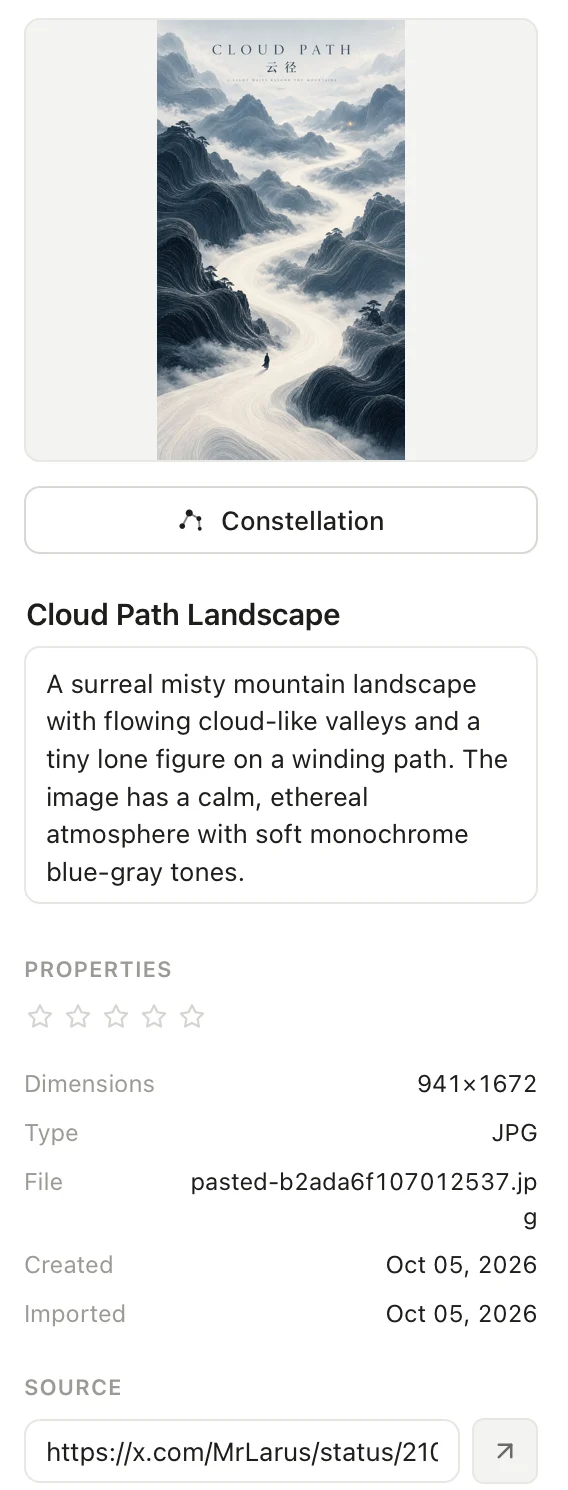
- The picture, and Constellation to see what belongs with it.
- The title and the description, edited in place.
- Properties: the rating, then dimensions, type, file and dates. A photo adds its camera details.
- The source it came from, then its tags and collections.
Title, description, rating, tags and collections are edited in place, and 0 to 5 rate the selection from the keyboard. Right-click an item for Collections, Find Similar, Constellation, Copy Image, Share via AirDrop or Reveal in Finder.
New in 1.3.18Collections, in that menu, is a checklist: a tick for each collection the whole selection is in, a dash and “1 of 2” when only part of it is. One click adds the selection or takes it out, and the menu stays open for the next one. Inside an open collection, the same menu also offers Remove from followed by the collection’s name, to take the selection out directly.
Collections
Collections nest, take an icon and a color, and one item can live in several. Drag items onto a collection in the sidebar to file them, or drop files from the Finder straight onto a collection to import them there. Deleting a collection never deletes its items.
Several items at once
Select more than one item and the right panel turns into a place to act on all of them.
From the top:
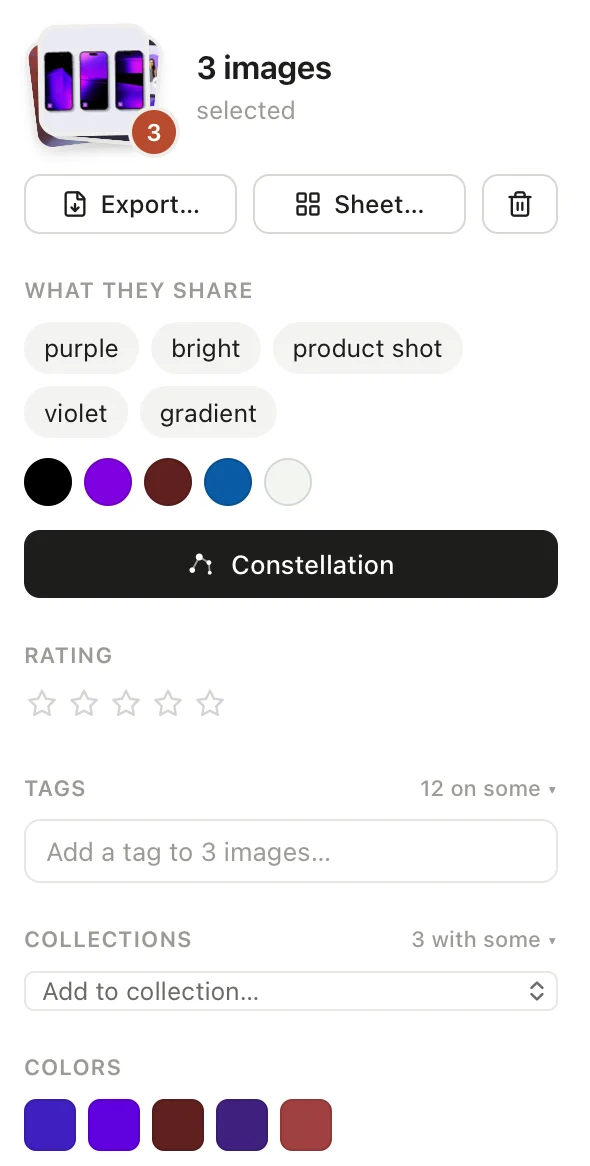
- Export… (⌘E), Sheet… and the trash, for the whole selection.
- New in 1.3.13What they share: the style words and palette the images have in common, and Constellation (what it draws).
- Rating: “all rated 4” when they agree, “mixed” when they do not. One click rates every item.
- Tags: the ones every item carries. “2 on some” unfolds the others, each with its count, “16/31”. × removes a tag from every item that has it; the field adds one to all.
- Collections: same chips. Add to collection… files the selection; its first choice, New collection from these 31…, creates one.
- Colors: the dominant colors. Click one to filter the library on it.
When some selected items have no tags, a line says “8 of 12 have no tags” with Catalog them: the Curator runs on those only.
NeedsA Curator key for Catalog them (The Curator). Without one, your agent can catalog them on your own AI plan (Agent access).
Contact sheet
Sheet… writes one PNG, 2400 pixels wide, with every selected item laid out in rows in the order of the grid, on a light background. Teserra reads the originals, so the board is sharp enough to send to a client or drop in a deck. Choose where to save it; the Finder shows it when it is done. Agents can ask for the same thing over MCP. Agent access